The Only Comprehensive and Customizable Macro Solution
More than just a Gaming Macro
Downloaded over 6 million times on SourceForge and rapidly growing!
More than just a Gaming Macro
Downloaded over 6 million times on SourceForge and rapidly growing!
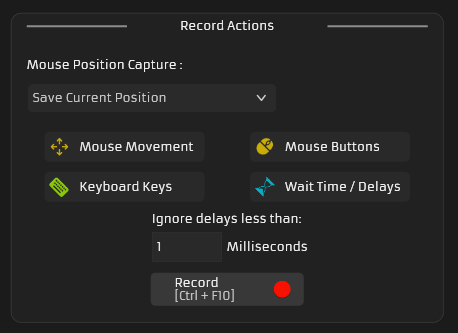
Recording a macro in TGMacro is very simple. After opening Macro Editor window by clicking New Macro, you’ll see the Recording section in the bottom-left corner of the window.
Here, you can choose which types of actions to record. For example, you can uncheck Mouse Movement or Wait Time / Delay if you don’t want them included. Only the checked actions will be recorded.
When recording mouse movements, you can decide whether to record the exact cursor position or just the difference from the previous position using the Mouse Position Capture option.
Once your settings are configured, press the Record button or use the default shortcut Ctrl + F10 to start recording your macro.