
The Only Comprehensive and Customizable Macro Solution
More than just a Gaming Macro
Downloaded over 6 million times on SourceForge and rapidly growing!
More than just a Gaming Macro
Downloaded over 6 million times on SourceForge and rapidly growing!
Triggers determine when, under what conditions, and how long your macro will run or repeat.
Currently, TGMacro has two types of triggers:
Let’s take a closer look at each of them.
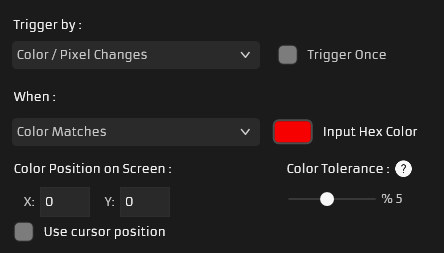
The Color / Pixel Changes Trigger detects the color at a specific point on the screen or at the current mouse pointer position. Based on your settings, it will trigger your macro when the color matches your chosen color or changes from it.
With the Trigger Once option, you can choose whether the macro runs only once when the condition is met or repeats as long as the condition remains true.
When : Here you choose whether your macro triggers when the detected color matches or does not match your chosen color.
Trigger Once : If you check this option, the macro will trigger only once while the condition is met, instead of repeating. It will wait for the condition to occur again after it ends.
Color Tolerance : The chosen color may not always match exactly, so you can set a tolerance between 1% and 10%. For example, selecting 5% tolerance means a 95% match is enough to trigger the macro.
Use Cursor Position : If checked, the trigger uses the color under your mouse pointer instead of a fixed screen position.
Color Position on Screen : Select the screen coordinates (in pixels) to monitor. You can also use Alt + X to get the current mouse position.
Color : Choose the color for matching here. You can use Alt + C to pick a color or click Input Hex Color to enter a color code in hex format.
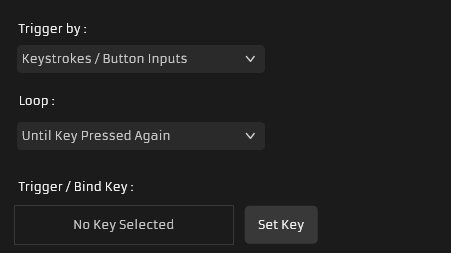
The Keystrokes / Button Inputs Trigger is used to create macros that run when a key is pressed, released, held down, or toggled on and off. You can assign Mouse, Keyboard, or Controller buttons or button combinations for the trigger.
Trigger / Bind Key : Here you can use the Set Key button to choose the key or key combination that will trigger your macro.
Loop : Choose how and how many times your macro will repeat based on the selected condition.
Until Key Pressed Again : The macro starts when the trigger key is pressed and continues repeating until you press the key again.
While Holding Key : The macro repeats as long as you hold down the trigger key.
Once, When Key Pressed
The macro triggers once when you press the trigger key.
Once, When Key Released : The macro triggers once when you release the trigger key.