
The Only Comprehensive and Customizable Macro Solution
More than just a Gaming Macro
Downloaded over 6 million times on SourceForge and rapidly growing!
More than just a Gaming Macro
Downloaded over 6 million times on SourceForge and rapidly growing!
To download the latest version of TGMacro Click here.
At the bottom of the page, you will see two options: Download Old and Download Latest.
Select Download Latest to get the newest version. Your download will start shortly.

After the download is complete, click the downloaded file from the top-right corner of your browser (this location may vary in browsers other than Chrome). The ZIP file will open in your compression program.
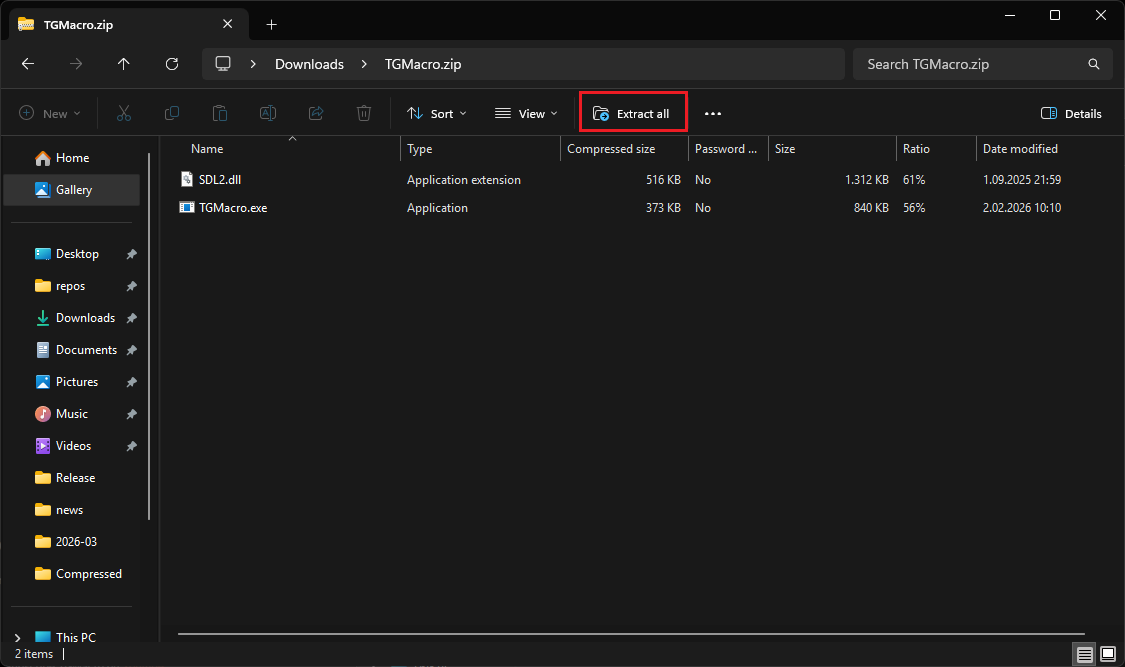
In the opened window, click Extract at the top, then click Extract All.
Choose your Desktop as the destination, create a folder named tgmacro, and extract all files into this folder.
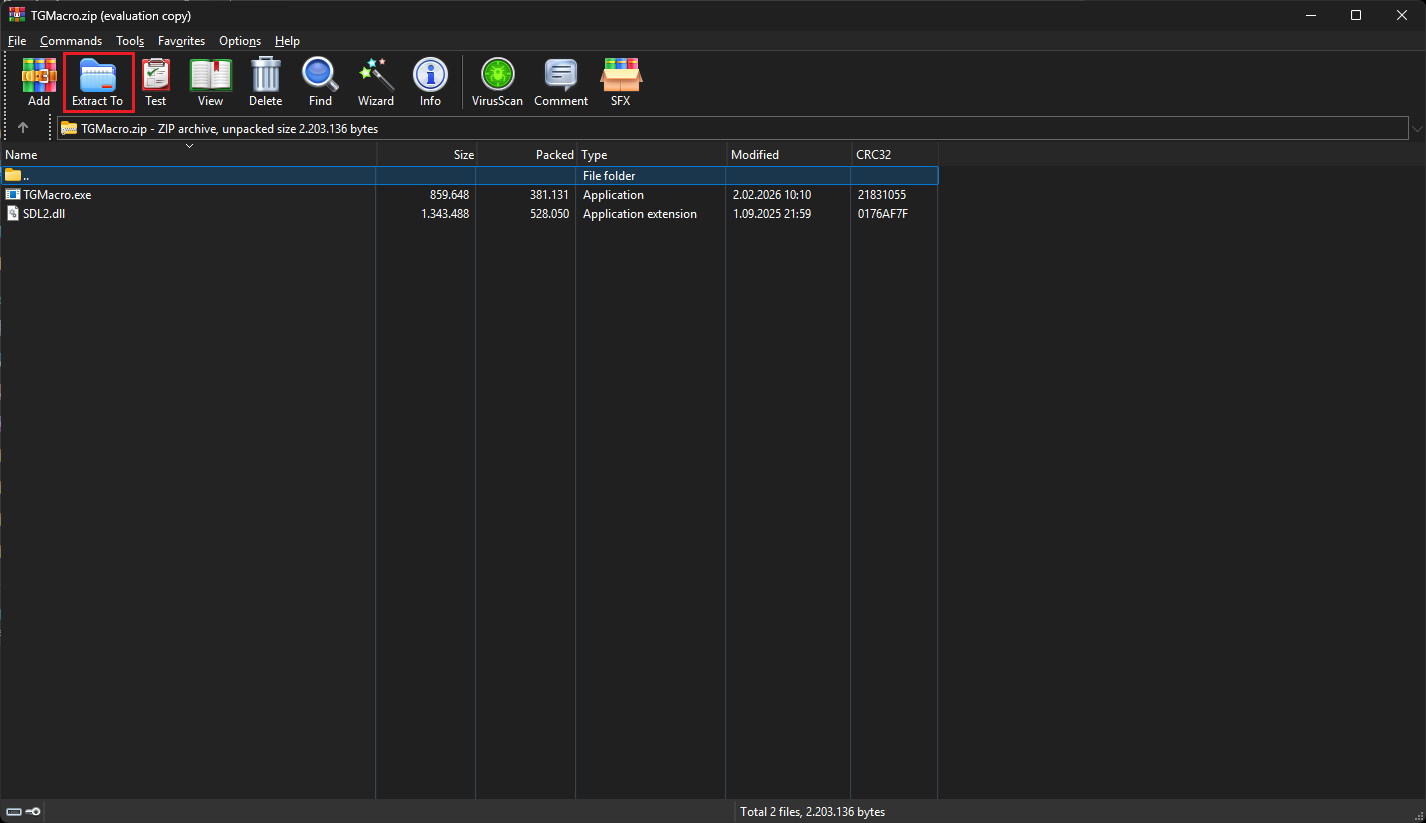
In the opened WinRAR window, click Extract To.
Select your Desktop, create a folder named tgmacro, and extract all files into this folder.
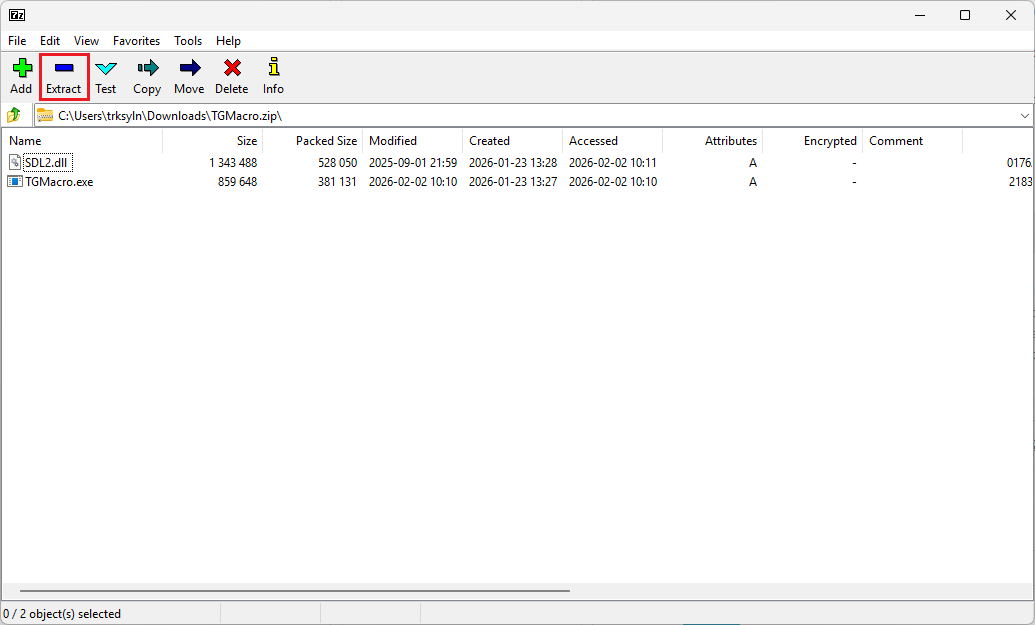
In the opened 7-Zip window, click Extract.
Choose your Desktop as the destination, create a folder named tgmacro, and extract all files into this folder.
Next, in the tgmacro folder on your Desktop, you will see two files: SDL2.dll and TGMacro.exe.
(SDL2.dll is required only for controller support. If you don’t plan to use a controller, you can delete this file.)
Double-click TGMacro.exe to launch the program.

Don’t worry. It’s just Windows being extra careful with apps downloaded from the internet.
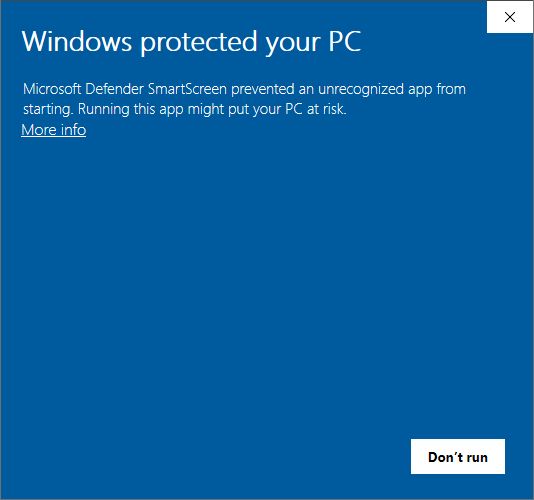
To fix it, right-click TGMacro.exe, go to Properties, check Unblock, and click OK.
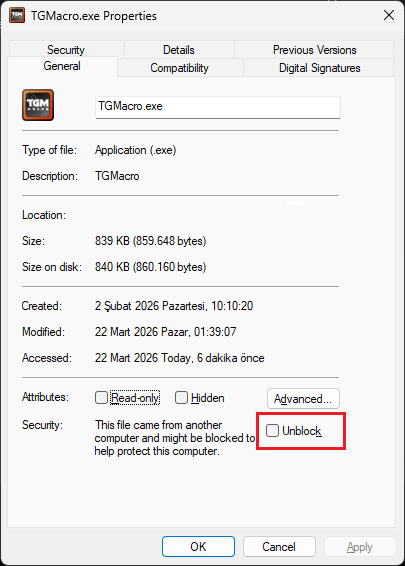
After that, you won’t see this message again. It’s completely safe.
To run TGMacro with administrator privileges:
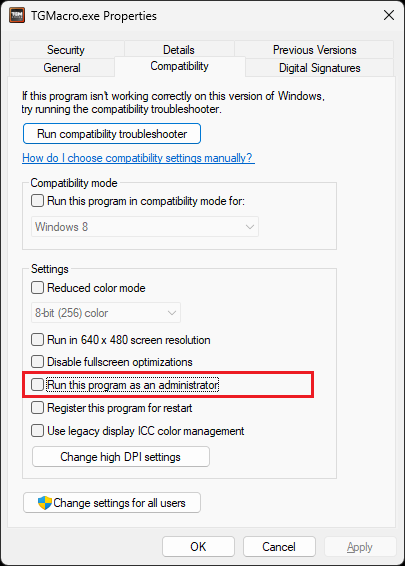
Now TGMacro will always start with admin rights.